

As an admin you can create global skills that your entire team can access. You manage these global skills in the settings section of Endgame.
Access your skills in settings
Navigate to https://app.endgame.io/settings/skills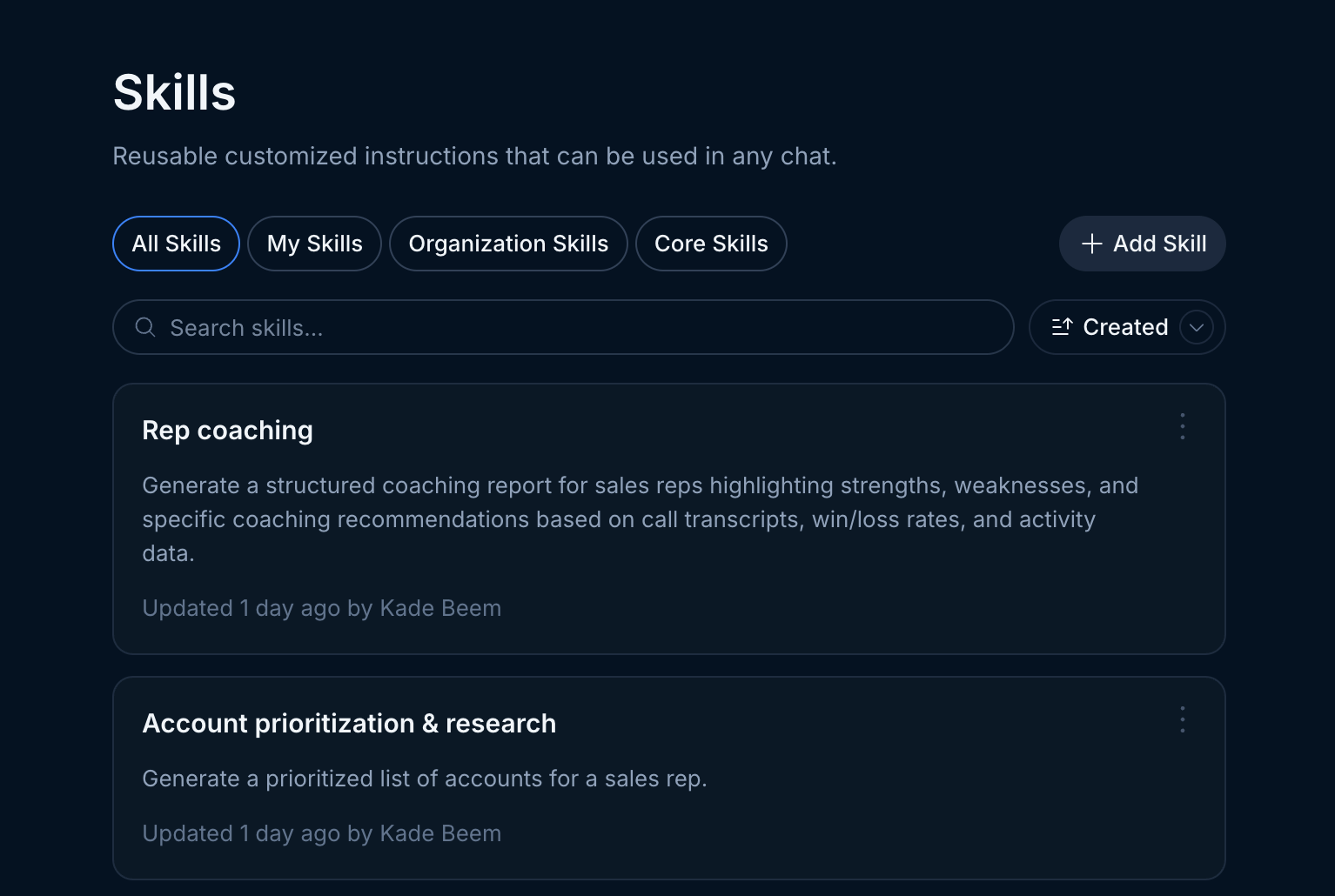
Add a Skill
Click “Add Skill” (top right of the list) -> Write a Skill or Upload a Skill to add a new skill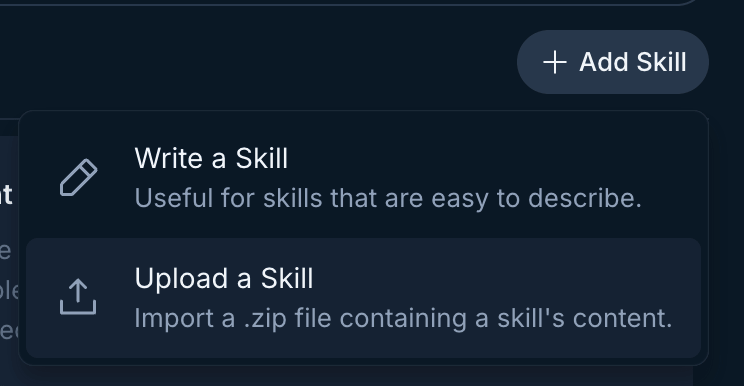
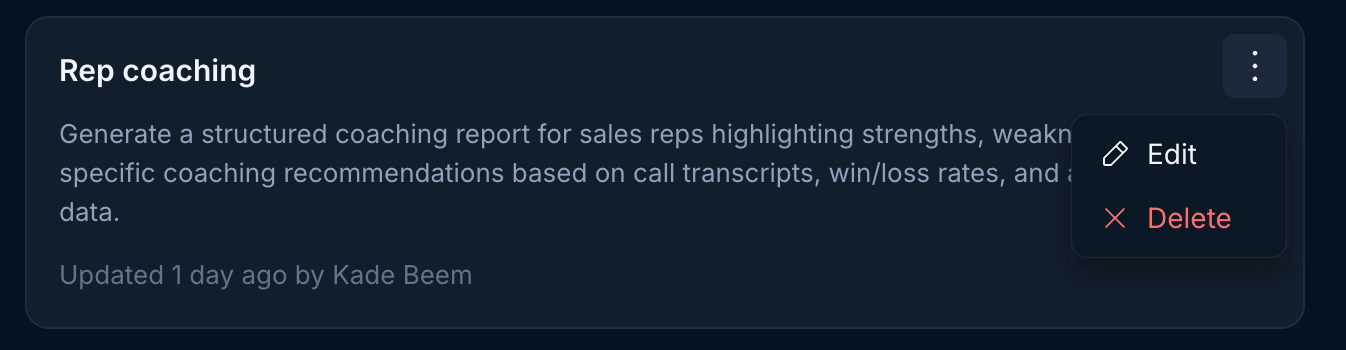
Remember, any change you make to a skill in settings such as creating,
editing, or deleting applies to your entire organization.
-
Title: The title of your skill, displayed on the skill card.
Example:
Demo Follow-Up -
Description: The description helps you and Endgame understand what a skill does. Include details about when the skill should be used and what it’s capable of so Endgame can apply it effectively.
Example:
Generates a post-demo follow-up email that thanks the prospect, recaps their key pain points, and outlines a clear next step. -
Example Prompt: The prompt that pre-populates in the chat input when this skill is selected from the skill grid.
Example:
Use the Demo Follow-up skill to write a follow-up email for the demo I just completed. -
Context: The actual instructions that define what your skill does and how it should output content — this is where the real customization lives.
Example:
Write a concise follow-up email after a sales demo. Open by thanking the prospect for their time. Summarize the 2–3 pain points they mentioned during the call. Close with a single, specific next step (e.g., a follow-up call, trial, or proposal). Keep the tone warm but professional. Do not use filler phrases like "Hope this email finds you well."
SKILL.md file in addition to other optional material that will be used to execute your skill. This is often example or template files to inform the output of your skill and other assets like company logos.Skill folders generally contain:-
SKILL.md (required): Instructions in Markdown - MUST contain a
nameanddescriptionfield which follows this format including the ”---”:The description helps you and Endgame understand what a skill does. Include details about when the skill should be used and what it’s capable of so Endgame can apply it effectively. - scripts/ (optional): Executable code (Python, Bash, etc.)
- references/ (optional): Documentation loaded as needed
- assets/ (optional): Templates, fonts, icons used in output
Configure Your Branding
If your team uses skills that generate slide decks (.pptx outputs), you’ll want to configure your organization’s branding so every deck comes out polished and on-brand. The Branding page controls the colors, logos, and design guidelines applied to deck artifacts.
Open the Branding settings
Navigate to https://app.endgame.io/settings/branding.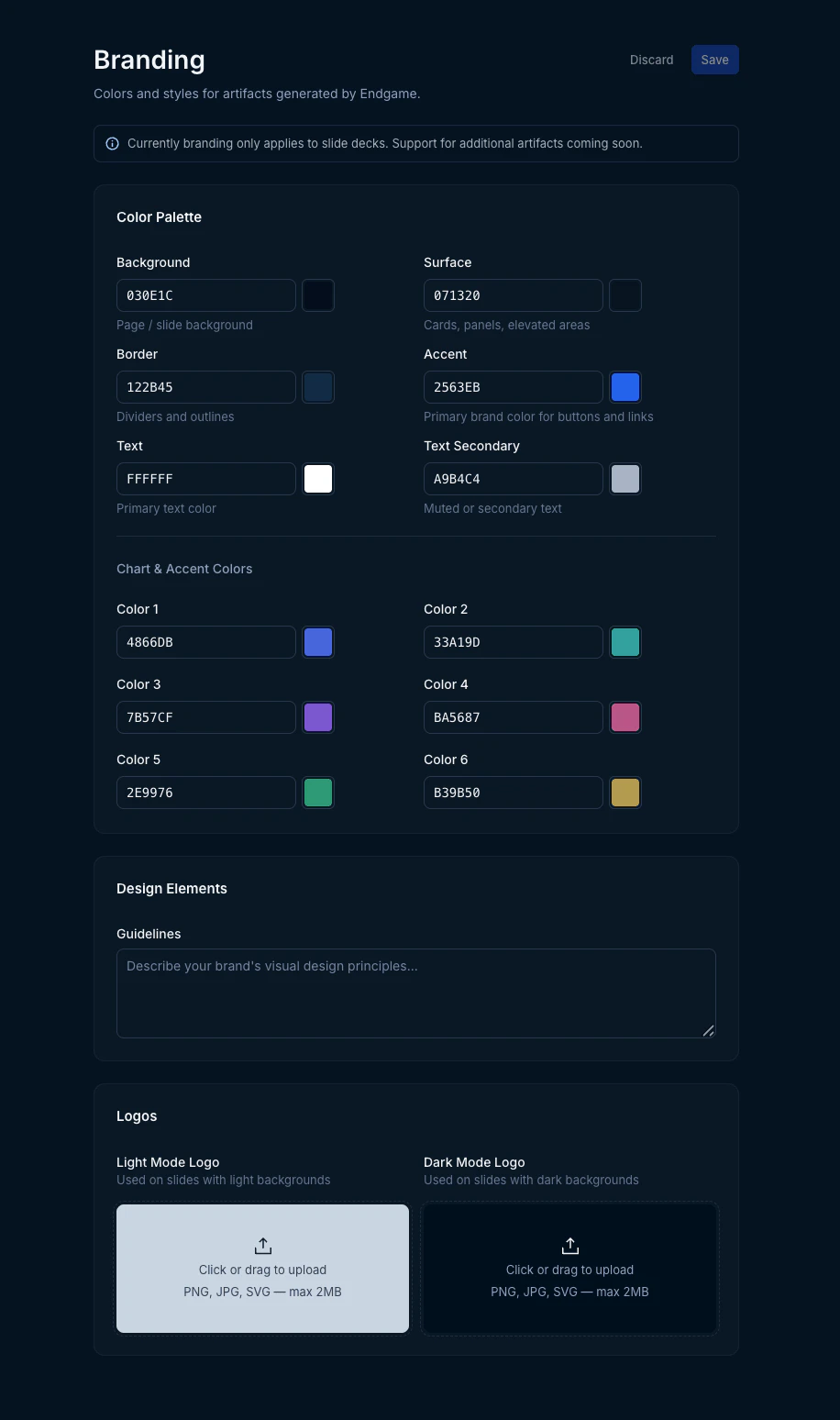
Set your Color Palette
Fill in hex values for the core slide colors:
- Background — Page / slide background color
- Surface — Cards, panels, and elevated areas
- Border — Dividers and outlines
- Accent — Primary brand color for buttons and links
- Text — Primary text color
- Text Secondary — Muted or secondary text color
Add Design Elements
Use the Guidelines field to describe your brand’s visual design principles. This gives the AI additional context about your brand’s aesthetic when assembling slides, for example, preferred layout styles, spacing preferences, or overall design tone.
Upload your Logos
Upload a Light Mode Logo (used on slides with light backgrounds) and a Dark Mode Logo (used on slides with dark backgrounds). Accepted formats are PNG, JPG, and SVG (max 2MB each).
Branding currently applies to slide deck outputs only. Support for additional artifact types is coming soon.